Popular Posts

Friday, December 10, 2010

Changing Desktop

.

Changing Desktop (Background / Wallpaper):

Wallpaper is the background area of the Desktop. Any Pattern of picture that can be stored as a bitmap (.bmp) or, in .jpg /.jpeg/gif etc…. files can be set as a screen back ground.

  1. Click the right mouse Button anywhere inside the blank area of the Desktop.
  2. Click on properties.

Or

  1. Click on start button.
  2. Choose setting.
  3. Click on control panel.
  4. Then, give double click on Display icon.

Then Display properties dialog box with different folders will appears.

  1. Choose Background folder –in case of windows ’00 and choose Desktop folder –in case of Windows’XP (if other folder exit) from properties dialog box.

6. Click on up or down arrow of Background and choose required wallpaper by viewing its sample.

7. Also choose required Display type (Tile/Center/Stretch).

8. Click on Apply.

9. Click on OK.

NOTE ( You can also select the required image(picture) as Wallpaper by clicking on browse button and choosing required one.

Tuesday, November 2, 2010

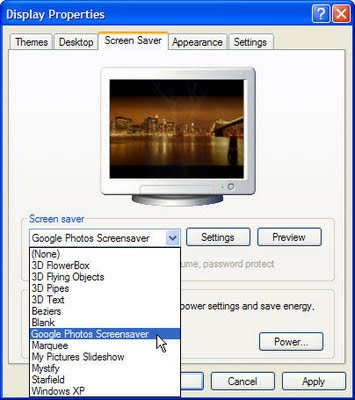
Change Screen Saver


Change Screen Saver

  1. Choose screen saver folder from display properties dialog box.
  2. Click on dropdown arrow of screen saver and choose required one.
  3. Click on setting button to set the special effect to the selected screen saver.
  4. Also define required waiting time for screen saver.
  5. Click on preview button to view its sample.
  6. Click on Apply.
  7. Click on OK

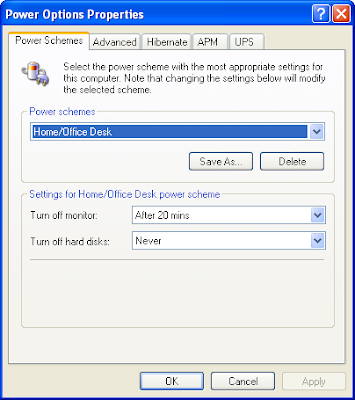
Note1. You can also define the required setting for standby, turn off monitor and Turn off Hard disk by using the settings (power) button of Energy saving features of Monitor.


Note2. Put the tick mark on (Ron resume, password protected ) option in windows’XP to lock the computer with screen saver.


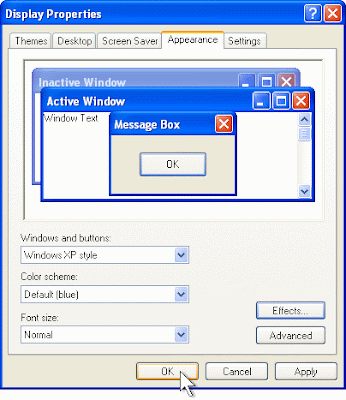
Changing Appearance Of The Screen


Changing Appearance Of The Screen


This option used to change the appearance (color, Front and size) of any viewable items inside the computer screen.


  1. Choose Appearance folder from display proprieties dialog box.

  2. Click on dropdown arrow of scheme (color scheme) and choose required one by viewing it’s sample. It helps to change overall screen color.

  3. But, if you want to change the color, front and front size of individual items then direct click on dropdown arrow of items ( Windows’00) and choose required item. But, in case of windows’XP, first click on advance button.

  4. After then, choose required items and click on dropdown arrow of color, front and front size and then required one.

  5. Click on OK.

  6. Click on apply.

  7. Click on OK.

(NOTE: To change into it’s default (standard ) setting, click on dropdown arrow of scheme (color scheme) and choose Windows Standard (Windows Classic).


Display Changing Setting


Changing Setting


With the help this option, you can change the different color level of the system and also set less or moor screen area (Screen Resolution).


1. Choose setting folder from Display properties dialog box.


2. Click on down arrow of color and choose required color (256 color, 16 bit, 32 bit etc).


3. In case of Desktop area, click on moving arrow and drag it up to less or moor position as your requirement.


(NOTE: 800 by 600 pixels is the standard resolution value for all types of computer program,


4. Click on apply.


5. Click on OK.


6. Click on yes.


7. Again, click on OK.


Tuesday, September 7, 2010

Insufficient Disk Space

Causes: If there is no any space in the storage device for copying or creating files.
Solution: Run chkdsk refresh the spaces that may be occupied by lost clusters.
If necessary, delete some files.

Insufficient Memory (Not enough memory)

Causes: There is no sufficient RAM to process the command you entered.
Solution: Close one or more memory-resident files (Opened programs). Reboot the computer.
Add more RAM to your system to accommodate the application or command.

General Failure

Causes: The disk in the Drive was not Formatted.
Solution: Reformat the disk using format command. If The problem continuous, replace the drive or repair.